You know that feeling when you're trying to explain something technical to a colleague or client, and you end up typing paragraph after paragraph of instructions? There's a better way: show them with a GIF.
GIFs have become the universal language of the internet for a reason. They're visual, they loop automatically, they work everywhere, and unlike video files, they don't require a play button. They just... work.
Why GIFs Beat Screenshots and Videos
Before we dive into how to create them, let's talk about why you'd want to use GIFs instead of traditional screenshots or videos.
- Screenshots: Static. Can't show processes or interactions.
- Videos: Require a play button. Often blocked or slow to load.
- GIFs: Autoplay, work everywhere, show motion, no audio needed.
GIFs are perfect for:
- Product demos: Show how a feature works in seconds
- Bug reports: Developers can see exactly what went wrong
- Tutorials: Quick how-to guides that don't need narration
- Documentation: Embed directly into wikis and docs
- Support responses: Answer customer questions visually
- Social media: Native support on Twitter, Slack, Discord, etc.
When to Use GIFs (and When Not To)
GIFs are incredibly useful, but they're not always the right choice. Here's when they work best:
Best for: Short demonstrations (5-30 seconds), UI interactions, simple processes, bug reproduction, quick tips, and anything that benefits from looping.
Not ideal for: Long tutorials (use video instead), content requiring audio, high-detail visuals, or anything over 60 seconds. File size can balloon quickly.
Creating Screen GIFs: The Simple Way
There are dozens of tools for creating GIFs from screen recordings, ranging from desktop apps to browser-based solutions. The right choice depends on your workflow.
If you need something quick and don't want to install software, browser-based tools are your best bet. Online GIF Recorder is a solid example: open the page, select your screen or window, record, and download. No installation, no account, no fuss.
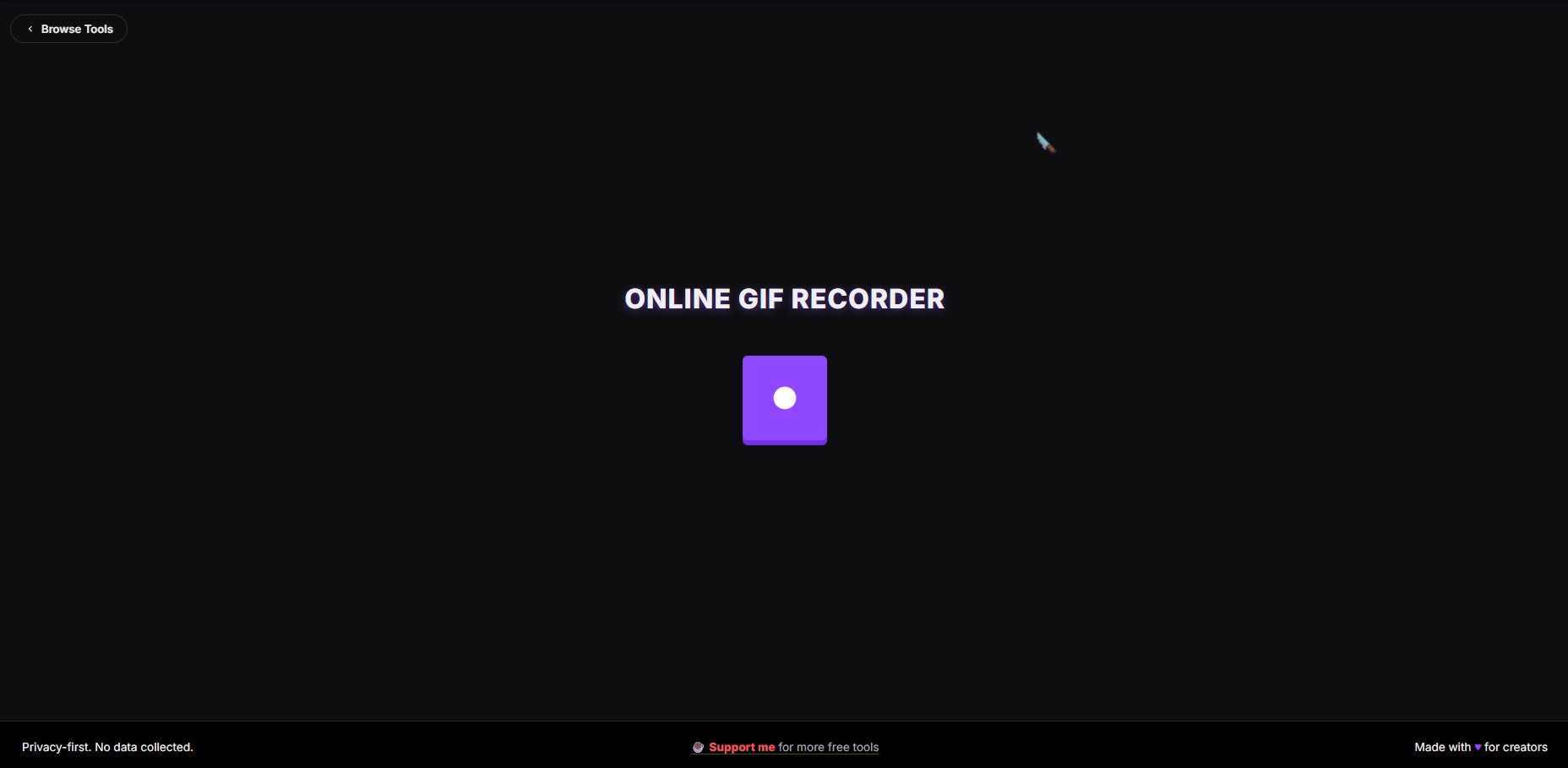
The biggest advantage of browser-based tools is portability. You can use them on any computer without admin rights, which is particularly useful if you're on a work machine with restricted software permissions.
Step-by-Step: Recording Your First GIF
Here's the general workflow for creating a screen GIF, regardless of which tool you choose:
- Plan your recording: Know exactly what you want to capture. Close unnecessary tabs and windows to avoid distractions.
- Select your capture area: Choose full screen, a specific window, or a custom region. Smaller areas = smaller file sizes.
- Record the action: Perform the task you want to demonstrate. Keep it concise; aim for 10-20 seconds.
- Review and trim: Cut out any dead time at the beginning or end.
- Optimize and export: Reduce frame rate if needed (10-15 FPS is often sufficient) to keep file size manageable.
Pro tip: Before recording, practice the action once or twice. Your first attempt is rarely your best. A smooth, deliberate demonstration is far more valuable than a rushed one.
Keeping File Sizes Under Control
GIFs can get large quickly, especially if you're recording high-resolution screens or long clips. Here are some tricks to keep file sizes reasonable:
- Record smaller areas: Capture just the relevant window or region, not your entire 4K monitor.
- Lower the frame rate: Most UI demonstrations look fine at 10-15 FPS instead of 30 FPS.
- Reduce dimensions: Scale down to 720p or even 480p if detail isn't critical.
- Limit duration: Keep recordings under 30 seconds when possible.
- Use fewer colors: Some tools let you reduce the color palette to save bytes.
A well-optimized GIF should typically be under 5MB for easy sharing via email and messaging apps.
Real-World Use Cases
I've seen GIFs transform how teams communicate. Here are a few examples:
Developer Documentation
Instead of writing "Click the settings icon, then navigate to Preferences, select Appearance, and toggle Dark Mode," you create a 10-second GIF showing exactly that. Readers see the process instantly.
Customer Support
When a customer asks "How do I export my data?" you can respond with a GIF showing each step. It reduces back-and-forth emails and gets them to a solution faster.
Bug Reports
Developers love GIFs in bug reports. "The modal doesn't close" becomes far more actionable when accompanied by a GIF demonstrating the exact issue, including any error messages or unexpected behavior.
Social Media and Marketing
Product launches, feature announcements, and tips all benefit from quick GIF demonstrations. They're native to most platforms and get more engagement than static images.
The Bigger Picture: Micro Tools That Just Work
Creating GIFs is a great example of the micro tool philosophy: simple software that does one thing exceptionally well. You don't need a bloated video editing suite to create a quick screen recording. Sometimes the best tool is the simplest one.
If you're exploring different options, I've also put together a comparison of popular GIF recording tools, including both free and paid options, so you can find what fits your workflow best.
Remember: The best GIF tool is the one you'll actually use. Don't get bogged down searching for the "perfect" solution. Pick one that works, learn it, and start creating.
Getting Started Today
You don't need special equipment, training, or expensive software to start creating useful GIFs. Open a browser-based tool, record your screen, and share. That's it.
The next time you're about to write a lengthy explanation, ask yourself: could I show this with a GIF instead? More often than not, the answer is yes. And your audience will thank you for it.